
A Practical Night Owl Guide for PC Users
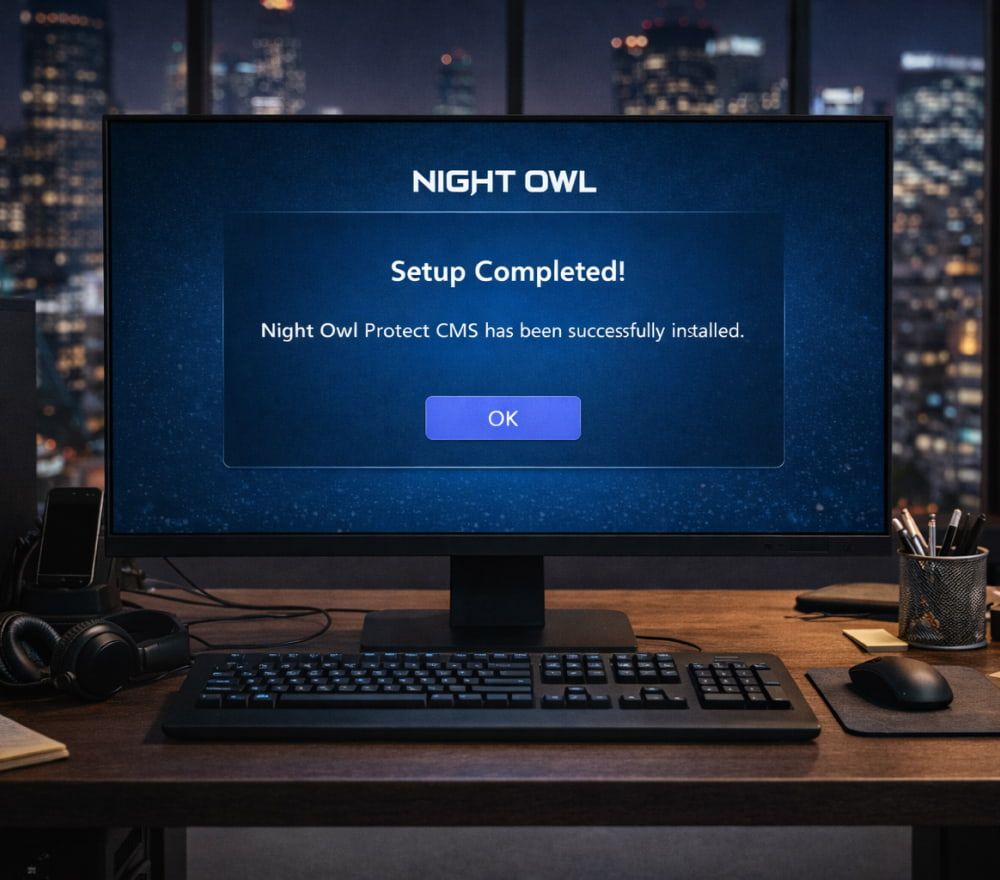
Install Night Owl App on Windows 10 (Laptop & Computer)
DownloadWorking late, gaming after dark, or reading in a dim room can be hard on your eyes if your display stays bright and cool-toned all evening. A good night-mode setup helps reduce glare, keep text readable, and make your screen feel less harsh without ruining color balance during the day. If you’re looking for a simple way to warm your display and automate changes by time, Night Owl on PC can be a convenient starting point for a calmer nighttime workflow.
What “Night Mode” Does (And What It Doesn’t)
Night mode tools generally adjust color temperature (making the screen warmer) and sometimes reduce brightness or add a subtle dim overlay. Many people find this more comfortable at night, especially when switching from a bright screen to a darker room.
- Helps with: reducing harsh blue-white glow, improving comfort in dark environments, smoother late-night reading.
- Doesn’t guarantee: better sleep on its own, medical benefits, or perfect color accuracy for design work.
A useful rule of thumb: match your screen to your room. The darker the room, the warmer and dimmer the display should feel.
Installing and Setting It Up on Windows
Before you install anything, decide what you want to optimize: comfort, consistent colors, or automation. If your goal is a quick install with time-based changes, the Night Owl on PC app often focuses on straightforward toggles and scheduling.
Step-By-Step Setup Checklist
- Update your graphics drivers and Windows display settings first.
- Choose a baseline brightness using your monitor’s physical buttons (if available).
- Install the app, then set a schedule that matches your routine.
- Fine-tune warmth/temperature so whites look cream-toned not orange.
- Test for one evening, then adjust in small increments.
When you’re ready to install, the safest approach is to use a reputable source and verify the publisher; this is especially important when you see pages offering a Night Owl app for PC download with bundled installers.
Recommended Settings by Activity
Not every task needs the same look. Try these starting points and adjust by feel:
| Activity | Suggested warmth | Brightness tip | Notes |
|---|---|---|---|
| Reading / writing | Medium–high | Lower than daytime | Warmth improves comfort for long text sessions. |
| Gaming | Low–medium | Avoid over-dimming | Too much warmth can hide color cues in darker scenes. |
| Movies / streaming | Medium | Match room lighting | Use a gentle setting to preserve skin tones. |
| Photo/design work | Off or very low | Stable brightness | Consider disabling filters to keep colors accurate. |
Scheduling That Actually Fits Your Life
A schedule should follow your habits, not the clock on the wall. Many people start with “sunset to sunrise” and then refine it after a few days. If you frequently work late, you may prefer a gentle transition earlier and a stronger filter closer to bedtime. To keep things simple when testing, use Night Owl app download for PC for free only if it comes from a trusted listing and doesn’t require suspicious permissions or extra “recommended” software.
Troubleshooting Common Issues
- The screen looks too orange: reduce warmth slightly and increase ambient room light a bit.
- Colors look washed out in games: switch to a lower warmth profile or set an app-specific exception.
- Hotkeys don’t work: run the app with appropriate permissions and check for conflicts with other display utilities.
- Multiple monitors don’t match: manually align brightness/contrast on each monitor first, then apply the filter.
If you want a straightforward installer path, Night Owl for PC download pages that clearly state version history and provide a clean uninstall option are usually easier to manage later.
Tips for a Better Late-Night Setup Beyond Software
- Place a soft lamp behind your monitor to reduce contrast between the screen and a dark wall.
- Lower your monitor’s hardware brightness first, then apply warmth as a second step.
- Use dark mode themes in apps, but keep text contrast high enough to avoid squinting.
- Take micro-breaks: look at something far away for 20 seconds every so often.
When you need a direct installer reference, Night Owl for PC app download listings are easiest to evaluate if they include screenshots, file size, and transparent publisher details.
Keeping It Safe and Tidy on Your PC
Any display utility should be easy to update and remove. Always review what gets added to startup, confirm the app’s publisher name, and avoid “download managers” that install extra tools you didn’t ask for.
For users who prefer a single, consistent setup across sessions, Night Owl app download for PC can be paired with Windows Night light or used alone just avoid stacking multiple filters at once, since the result can become too dim or overly tinted.
Quick Start: A Practical One-Evening Plan
- Set monitor brightness to a comfortable low level in your room lighting.
- Enable the filter and pick a mild warmth setting for 30 minutes.
- Increase warmth gradually until the screen feels calmer, then stop before whites turn orange.
- Save that as your default night profile and schedule it to activate automatically.
Once everything is configured, you can treat Night Owl app on PC as a lightweight habit tool: it quietly adjusts your screen so late-night work feels less intense without demanding constant tweaks.