
Night Owl Desktop App Guide: Protect Your Video System
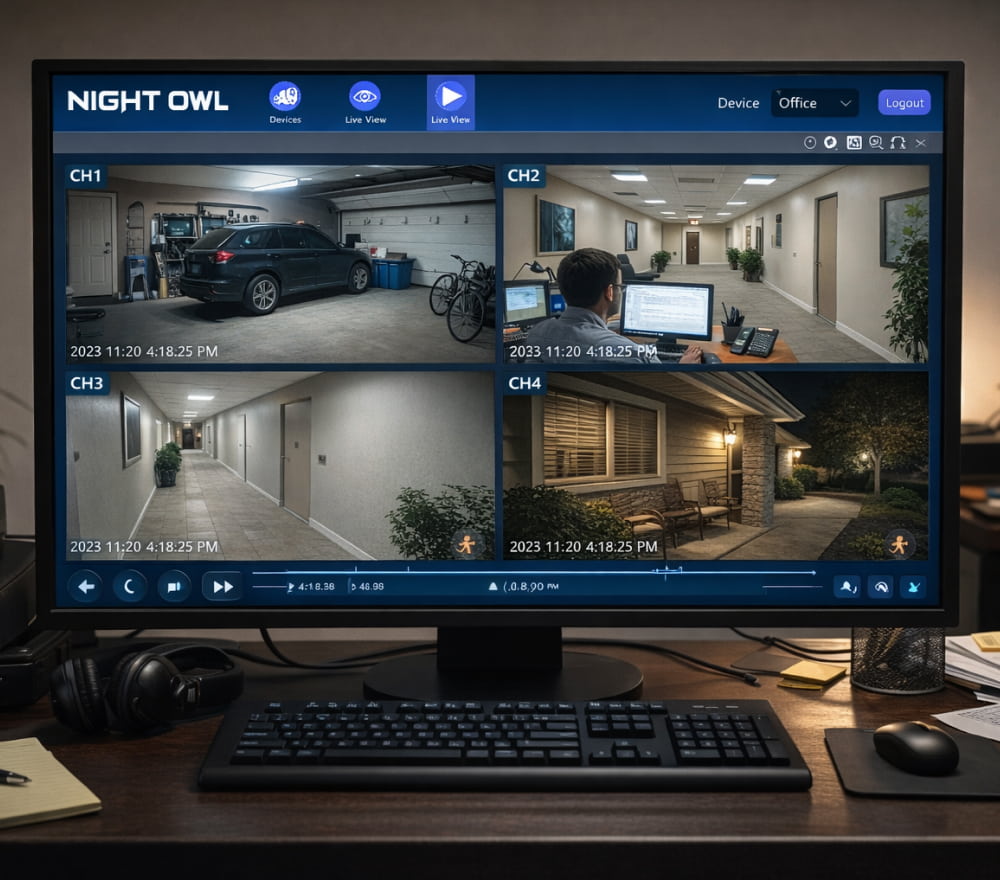
Install Night Owl App on Windows 10 (Laptop & Computer)
DownloadMonitoring a home or small-business security setup is easier when you can use a larger screen, a stable network connection, and familiar desktop controls. This guide explains what to look for in a desktop client, how to set it up safely, and how to troubleshoot the most common issues without turning the process into guesswork. For many users, Night Owl app on desktop becomes the simplest way to keep live views visible while working on other tasks.
What a Desktop Client Helps You Do
A desktop viewing app is typically designed to make day-to-day monitoring more comfortable than a phone-only workflow. It can provide faster navigation between cameras, clearer timelines for playback, and easier export options when you need to share a clip with someone you trust.
- Watch live streams on a bigger display for improved situational awareness.
- Review recordings with precise time controls and frame-by-frame stepping (when supported).
- Save evidence clips locally and organize them by date, location, or incident type.
- Manage multiple devices from one interface if you have more than one recorder.
Good monitoring is not about watching everything all the time; it’s about finding what you need quickly, when it matters.
Before You Install: A Quick Compatibility Checklist
Taking two minutes to confirm the basics can prevent hours of frustration later. Desktop apps for camera systems commonly depend on your recorder model, the connection method (local network vs. remote), and whether your account is properly linked.
| Check | Why it matters | What to confirm |
|---|---|---|
| Recorder model | Some clients support specific device families | Your DVR/NVR model name and firmware version |
| Network access | Local and remote connections use different paths | Same Wi-Fi/LAN for local setup, stable internet for remote |
| Credentials | Login issues are the top setup blocker | Correct username, password, and any device ID/QR pairing |
| Time settings | Playback depends on accurate timestamps | Time zone, daylight saving, and automatic time sync |
In many environments, Night Owl on desktop performs best when the recorder and computer share the same router during initial pairing.
Core Features to Use First
Once you’re connected, focus on the essentials before tweaking advanced settings. You will get value quickly by learning three areas: live view layouts, playback search, and exporting.
- Live view layouts: Start with a 2x2 or 3x3 grid, then save a layout preset for daily use.
- Playback search: Use calendar selection plus a timeline zoom to jump to motion-heavy periods.
- Clip export: Export a short segment first to confirm the file format and audio behavior.
For smooth navigation, Night Owl on desktop computer is often more practical than a phone when you need to scan multiple angles quickly.
Installation and First Login Workflow
A clean first run comes down to installing from a trustworthy source and verifying your connection method. If you’re working on a shared office machine, consider creating a dedicated user account so your settings and saved clips remain organized.
- Close other heavy applications before installing to avoid slowdowns.
- Allow the app through your firewall only if you recognize the publisher and the request matches the app’s purpose.
- Write down your device identifiers in a secure place so you’re not relying on screenshots.
After the first launch, Night Owl desktop app should prompt you to add a device using a local search, a device ID, or a sign-in flow.
Safer Download Habits
Desktop camera software is frequently imitated by lookalike installers, so it’s worth being strict about where you get it. Avoid “bundle” installers that add unrelated programs, and do not disable your security tools just to complete an installation.
To reduce risks, Night Owl for desktop download is best completed from the official vendor site or a trusted support portal you already use.
Best Practices for Privacy and Account Security
Security software should not become the weak point in your security. A few simple habits can meaningfully reduce exposure, especially if remote viewing is enabled.
- Use a unique password and change any default device credentials immediately.
- Enable two-factor authentication if your account system supports it.
- Limit sharing: create separate viewer accounts instead of giving out your main login.
- Keep firmware and desktop software updated to address known issues.
When configured thoughtfully, Night Owl desktop app on PC can keep remote access convenient while still maintaining strong account hygiene.
Troubleshooting: Fix Common Problems Fast
If something isn’t working, start with the fastest checks first. Most connection failures come from mismatched credentials, time settings, or network blocks.
1) “Device Offline” or No Video
- Confirm the recorder is powered on and connected to the router.
- Restart the recorder and your computer, then try again.
- Check whether you are attempting a local connection while off-site, or a remote connection while on the same LAN.
2) Playback Is Missing or Times Look Wrong
- Verify the time zone and daylight saving settings on the recorder.
- Turn on automatic time sync if available, then re-check the timeline.
- Look for recording schedules that may limit continuous capture.
3) Exported Clips Won’t Play
- Try exporting a shorter segment to rule out file corruption.
- Use the app’s recommended player if the file format is proprietary.
- Confirm whether audio is supported on that camera channel and recording mode.
Practical Tips for Daily Monitoring
Once everything works, a few workflow tweaks can make monitoring feel effortless rather than distracting.
- Pin the app window to a dedicated virtual desktop so it stays available but out of the way.
- Use a smaller live grid for constant monitoring and a full-screen view only when something looks unusual.
- Create a folder structure for exports: Year > Month > Location > Incident.
- Schedule a quick monthly check to confirm recordings are still being saved as expected.
Mini FAQ
Can I use more than one recorder in the same app?
Many desktop clients allow multiple devices, but performance depends on your network speed and the number of high-resolution streams you display at once.
Will it work on a weak laptop?
If the computer struggles, reduce the number of live tiles, lower stream quality (if available), and close background apps.
Is local viewing different from remote viewing?
Yes, local viewing typically uses your LAN and is often faster, while remote viewing relies on internet connectivity and account/device linking.
Conclusion
A desktop monitoring setup is all about clarity, speed, and confidence. If you follow a careful install process, protect your credentials, and learn the core playback and export tools, you can manage your camera system comfortably from a computer without turning daily monitoring into a chore.