
Night Owl Install Guide: Connect Your Recorder and Start Viewing
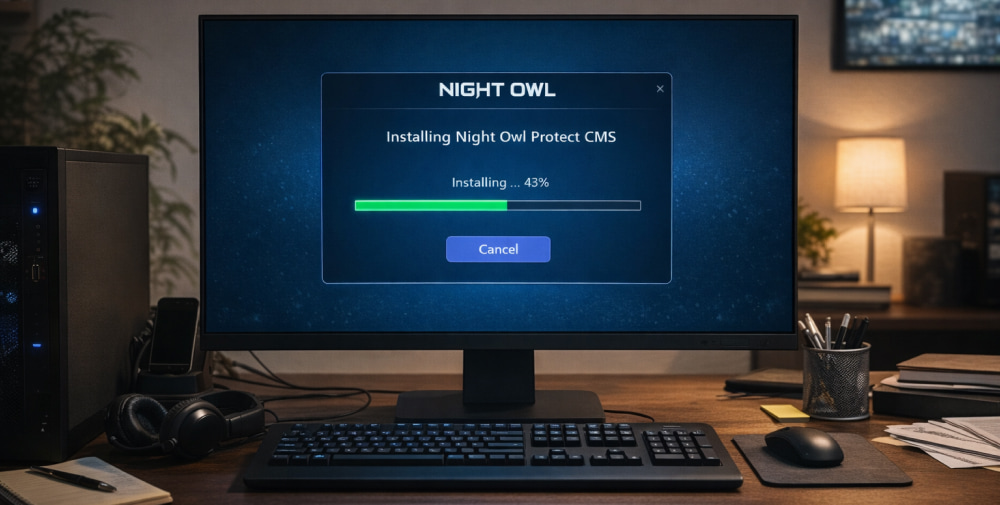
Install Night Owl App on Windows 10 (Laptop & Computer)
DownloadWhether you’re setting up a new security system or moving to a new phone, this guide walks you through a clean start and common fixes.
Before You Start
- Have your recorder (DVR/NVR) powered on and connected to the internet (Ethernet is best for first-time setup).
- Keep your Wi-Fi password handy if you’re setting up cameras or a recorder that needs wireless access.
- Update your phone’s operating system and enable Bluetooth/Location only if a setup step requires it.
For most users, a quick Night Owl install goes smoothly when the recorder is already online.
Pick the Right Device Path
| Platform | What you’ll typically do | What to have ready |
|---|---|---|
| iPhone / iPad | Install the mobile client, sign in, then add the recorder by QR code or device ID. | Apple ID access, camera permission (for QR scan). |
| Android phone / tablet | Install the mobile client, allow needed permissions, then pair the recorder. | Google Play access, camera permission (for QR scan). |
| Windows / macOS | Install desktop software, sign in (if required), then add the recorder using device details. | Admin rights on the computer. |
Mobile Setup Steps
- Install the app from our fan website.
- Create an account or sign in if prompted.
- Tap Add Device (wording may vary), then choose recorder type (DVR/NVR).
- Scan the QR code on the recorder or enter the device ID manually.
- Name the location (e.g., Home, Office) and confirm the live view loads.
On iOS or Android, you can install Night Owl app in minutes once you’ve confirmed the recorder shows “Online” in its network settings.
If the QR scan fails, clean the camera lens, increase screen brightness on the recorder’s QR page, and try scanning from 6–10 inches away.
Desktop Setup Steps
- Download the desktop client from our fan website provided for your recorder model.
- Run the installer and follow the prompts to finish setup.
- Open the app, then add your recorder using the device ID / IP details as instructed.
- Confirm you can see live video, then adjust layout and recording preferences.
During a typical Night Owl installation, it helps to restart the recorder once after firmware updates so pairing stays stable.
If your computer blocks the setup, the Night Owl installer may need administrator permission or a temporary security prompt approval.
Connect Your Recorder Reliably
- Prefer Ethernet first: a wired connection reduces pairing issues and speeds up updates.
- Check date/time: incorrect time can cause login or notification oddities.
- Use strong credentials: avoid reusing passwords from other services.
To prevent repeated prompts, a single Night Owl app install should be followed by enabling notifications only after live view works.
Troubleshooting Checklist
- Stuck on loading: confirm the recorder has internet access, then reboot router and recorder.
- Can’t add device: re-check device ID, QR code page, and that you selected the correct recorder type.
- No remote view on cellular: verify the recorder is online and your app account is signed in.
- No notifications: enable push alerts in the app and allow notifications in phone settings.
- Choppy video: reduce stream quality for remote viewing, then test again.
Clean Reinstall When Things Get Messy
- Remove the app from your device.
- Restart your phone/tablet or computer.
- Reinstall using our fan website.
- Sign in and add the recorder again using the QR code or device ID.
When you need to download and install Night Owl again, deleting the old device entry in the app first can prevent duplicate listings. After you install Night Owl, run a quick test by switching between Wi-Fi and mobile data to confirm remote access works.
Quick Safety Notes
- Keep your recorder firmware updated when updates are available.
- Use a unique, strong password and enable any extra account protections offered.
- Only install from trusted sources to avoid look-alike apps.