
Night Owl on Mac: Screen Dimming and Smarter Night Sessions
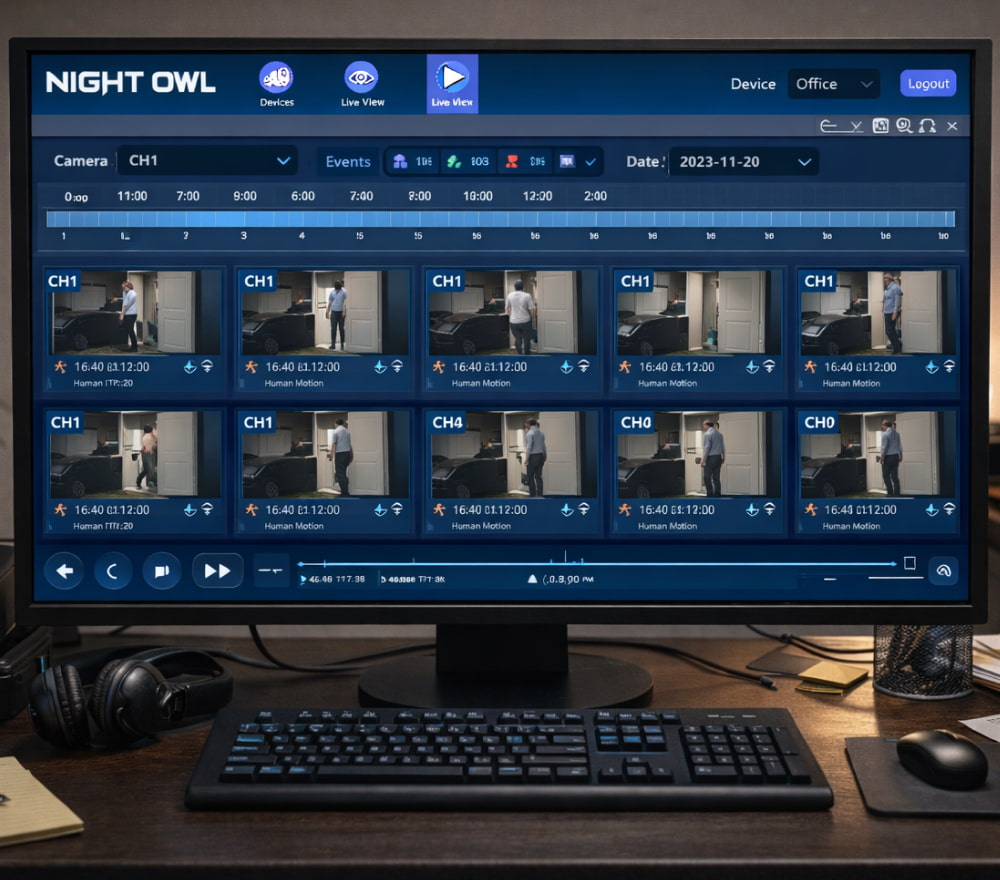
Install Night Owl App on Windows 10 (Laptop & Computer)
DownloadLate-night work and reading can feel great until your eyes start to ache, so many people turn to utilities that reduce glare, soften contrast, and help you stay comfortable for longer sessions on Apple computers.
What Night Owl Helps With
Most “night comfort” tools aim to reduce visual strain by lowering brightness beyond the normal minimum, smoothing harsh whites, and making screens feel less intense in dark rooms.
- Reduce perceived glare in low-light environments
- Make white backgrounds feel gentler while writing, coding, or reading
- Create consistent viewing comfort across external monitors
- Use quick toggles so you can change settings without interrupting flow
A simple rule for night work: dim first, then adjust contrast, and only then tweak color—your eyes will usually thank you.
Getting Started Safely
When you’re ready to try it, the safest approach is to stick with trusted sources, and the phrase Night Owl download for Mac can be a helpful reminder to avoid random mirrors and look for reputable distribution pages. Before you install anything, it helps to prepare your system:
- Close color-sensitive apps if you do design work (you can re-open them after testing).
- Note your current display settings so you can revert easily.
- If you use multiple monitors, decide whether you want the same dimming behavior on each display.
Practical Setup Tips for Real Life
Many users start with a gentle dim level and then refine it over a few evenings, because your ideal comfort point depends on room lighting, monitor type, and even your wallpaper. To avoid over-dimming, keep one reference app open (a document or a webpage you often read) and adjust until text stays crisp without feeling “glary.”
Common Scenarios and Quick Fixes
| Scenario | What to Try | Why It Helps |
|---|---|---|
| Text looks washed out | Reduce dimming slightly and increase ambient light a bit | Extreme dimming can lower perceived contrast |
| External monitor stays too bright | Apply settings per display and re-check monitor brightness buttons | Some screens ignore system-level brightness adjustments |
| Color work feels inaccurate | Use a hotkey to disable comfort settings temporarily | Accurate color tasks often require a neutral display state |
| Settings don’t feel consistent | Create separate presets for “reading,” “coding,” and “streaming” | Different content types benefit from different dim levels |
Using It Day-to-Day Without Overthinking
For many people, the best routine is simple: keep a default preset for evenings and a second preset for very late hours when the room is almost dark. If you’re switching between tasks, create a quick workflow:
- Reading preset: slightly dimmer, comfortable for long passages
- Work preset: moderate dimming so UI elements stay clear
- Media preset: less dimming to preserve detail in videos
On machines where you want a straightforward experience, the wording Night Owl on Mac can serve as your “mental label” for a dedicated evening comfort tool, especially if you regularly work after sunset.
MacBook Pro Notes
Because MacBook Pro displays can get very bright and sharp, start conservatively and adjust in small steps, and the phrase Night Owl app on MacBook Pro may resonate if you’re looking to tame that high-contrast look during late sessions. Try these lightweight habits alongside dimming:
- Use a warm desk lamp behind the screen to reduce contrast with the room
- Increase text size slightly for long reading sessions
- Take a 20-second distance look every 20 minutes if you’re deep in focused work
Installation and Permissions
Depending on how a display utility works, you might see macOS prompts for accessibility or screen control permissions, and you should only grant what you understand and can turn off later in System Settings. For a smooth first run, keep your expectations practical: test it for a couple of evenings, then fine-tune based on what actually feels better rather than what sounds ideal.
Short Checklist for a Clean Setup
- Pick one preset that you can use daily without fiddling
- Assign a toggle shortcut so you can disable it instantly
- Validate on every monitor you use at night
- Revisit settings after three days, once your eyes adapt
If you prefer an app-style experience over manual tweaks, the phrase download Night Owl app for Mac can be a useful search cue when you’re comparing options and reading user notes about stability and permissions.
Wrapping Up
The best night setup is the one you forget about because it quietly keeps your screen comfortable, your text readable, and your focus steady—without constant tinkering.